
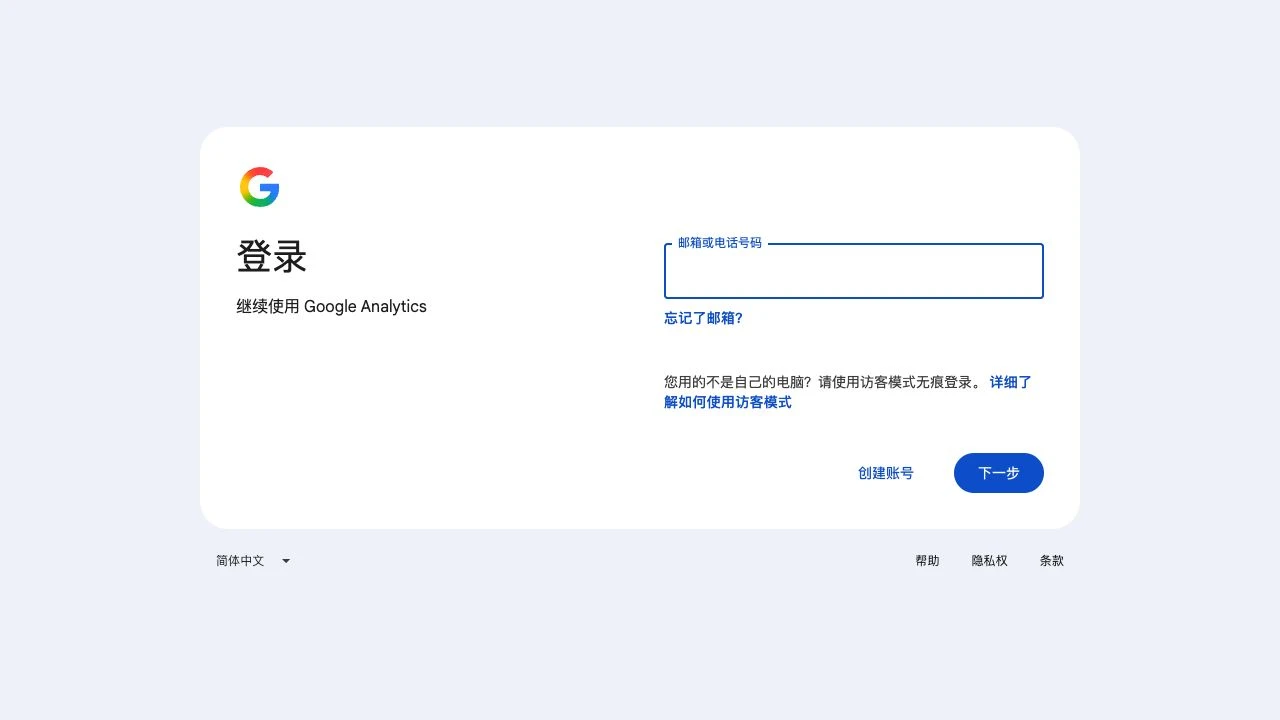
GA4 is Google Analytics for websites and apps and uses an existing Google account. The official login screen was captured. Account, property and stream creation, tag installation and report checks are documented guidance, not captured dashboard screens. No analytics resource or tracking setup was changed.
Open analytics.google.com and sign in with the Google account your business controls. An existing Gmail account is sufficient.
Check existing resources before creating duplicates for a website.
| Level | Purpose | Example name |
|---|---|---|
| Google account | Sign-in identity | Your work Google account |
| Analytics account | Groups business analytics resources | Company or brand |
| GA4 property | Holds analysis and reports | Brand website |
| Web data stream | Receives website data | Website Web |
First-time users select Start measuring. Otherwise review the selected account in Admin and create a separate account only when needed. Set its name and review data-sharing choices.
Choose a property name, reporting time zone and currency. Complete the business prompts and review any agreements before creating it.
Choose Web, enter the actual site URL and a stream name, and review enhanced measurement. For an existing property, use Admin → Data streams → Add stream.
| Field | What to use |
|---|---|
| Platform | Web, not iOS or Android |
| Website URL | The actual protocol and primary site address |
| Stream name | For example, Brand website Web |
| Enhanced measurement | Review which automatic events you want |
Open the web stream and find its G- measurement ID. Do not confuse it with the numeric property or stream ID.
Check existing tags first. Avoid sending duplicate data through overlapping platform integrations, manual tags and Google Tag Manager.
| Site type | Connection path |
|---|---|
| Custom website | Use the stream’s installation instructions. For manual installation, have the developer add the full Google tag to the shared head and publish. |
| Shopify | Open Google & YouTube, connect the correct Google account, start GA4 setup, select or create the property and click Connect. |
| Existing GTM setup | Ask the tag owner to verify the Google tag in the existing container and its published state rather than adding a second copy. |
After publishing the integration, browse the live site and inspect Reports → Realtime. If nothing appears, check the selected property, published tag, browser blocking and site consent settings.
Record the property, measurement ID, installation method and responsible owner. Invite colleagues through access management according to their roles, without sharing passwords.
FAQ and official references
How is GA4 different from Search Console?
Search Console focuses on Google search and indexing; GA4 measures activity within your website or app.
Why is a new property empty?
The site must send data to the stream. Check the selected property, published integration, browser blocking and consent configuration.
Must Shopify users paste code into a theme?
This guide uses Google & YouTube. Check existing integrations before adding code for the same stream.
Can I use a UA- ID?
This guide uses GA4 web streams and G- measurement IDs, not legacy Universal Analytics UA- IDs.
Next, let’s work together.
Share this guide with a colleague or contact your RIFY project lead.
Contact RIFY ↗Read next: How to create a Gmail account →Read next: What to prepare before your project starts →Read next: How to sign up for Cloudflare with email →Read next: How to buy a domain on Cloudflare →Read next: How to register a Shopify store →Read next: How to set up Google Search Console for your website →Read next: How to grant RIFY GA4 administrator access →Read next: How to grant RIFY Search Console access →Read next: How to grant RIFY Shopify administrator access →