
Use a browser that can access Google and keep your own account details ready. Google may request phone or device verification. These four screenshots come from an actual browser walkthrough that stopped at the password screen; registration was not completed.
accounts.google.com/signup
Use the official signup link below. If you start from the sign-in page, choose Create account and the appropriate account type. This walkthrough is for a personal Gmail address.
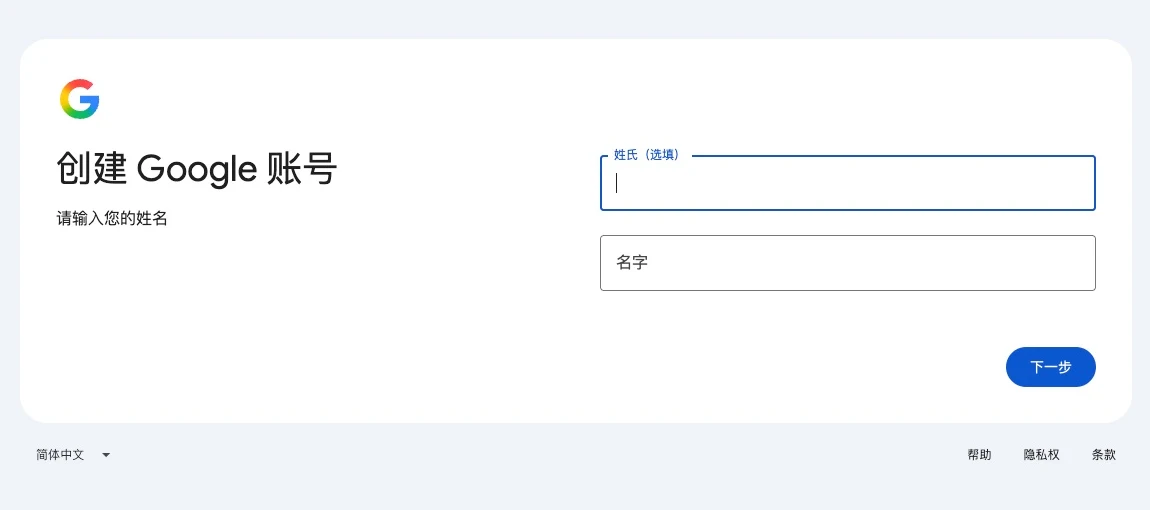
Enter your first name; the surname is optional in this captured flow. Click Next. Use accurate information when creating your own account.
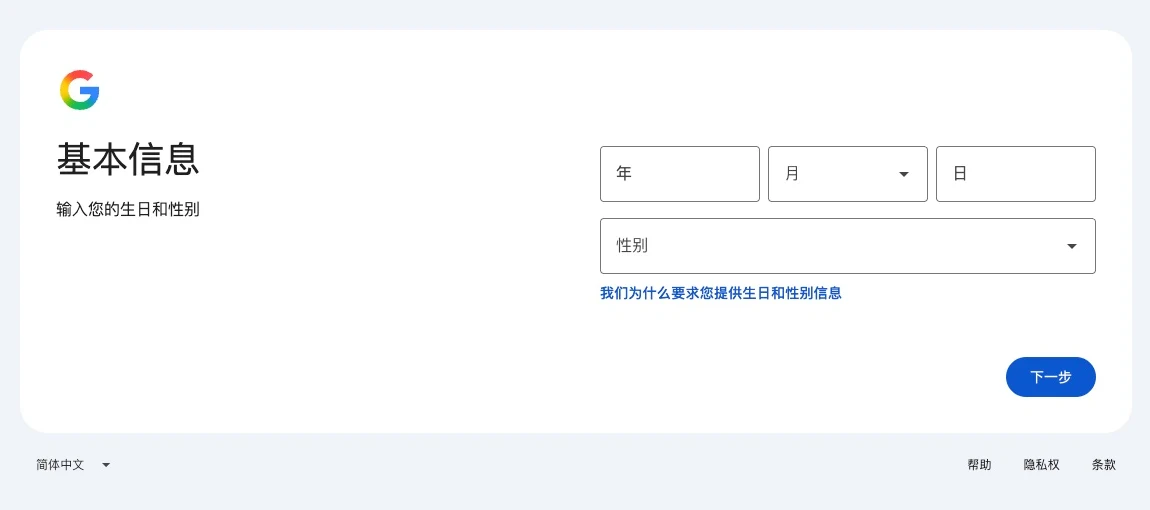
Complete the year, month, day and gender fields, then click Next. The screenshot shows the empty form. Use your own information when registering.
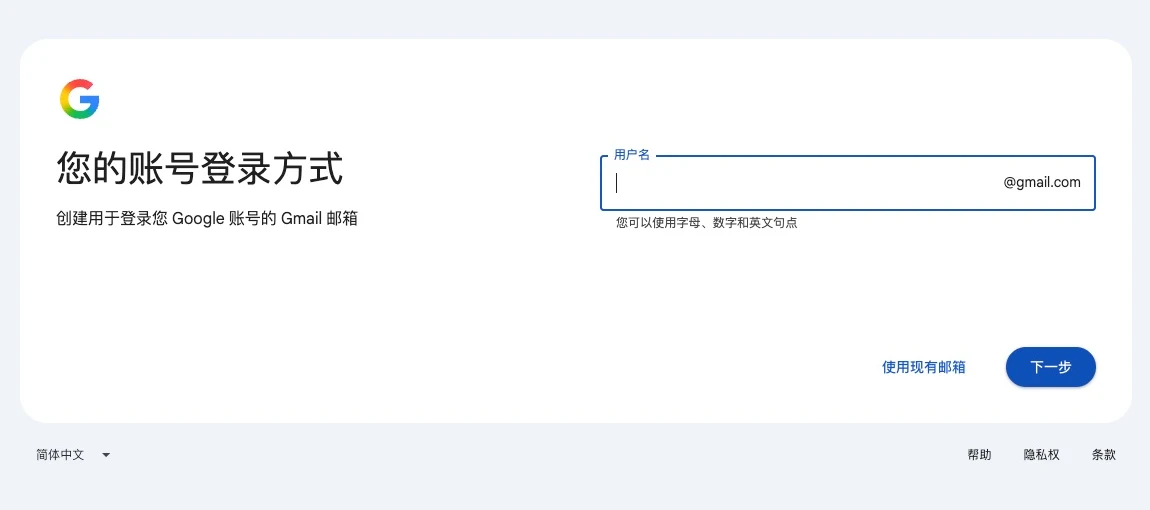
Enter your preferred username. The @gmail.com suffix is already shown. Click Next; if the username is unavailable, choose another. Some flows show suggested addresses first.
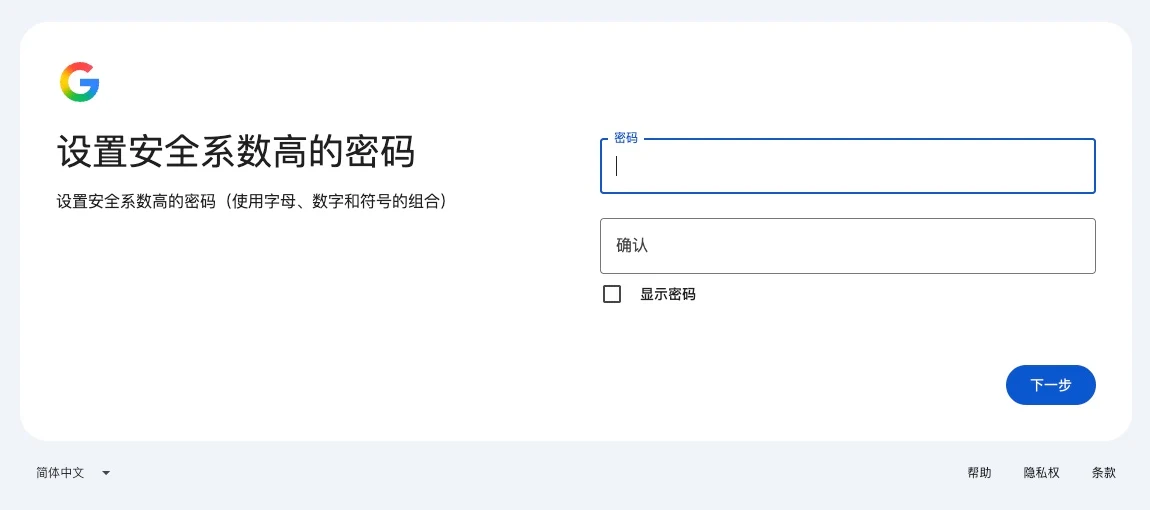
The account owner enters and confirms their password, then clicks Next. No password was entered in this screenshot. Our recorded walkthrough ends here; no account was created.
The remaining screens depend on Google’s requirements, your device and region. Complete any phone or device checks yourself and follow recovery-email prompts if shown. Review your details and read the privacy policy and terms before deciding whether to accept.
After completing registration, open mail.google.com and sign in. Check the displayed email address. Add recovery details as appropriate and share only the email address with your project contact.
Need help?
What if the username is unavailable?
Try a different username. Names that are used, too similar, previously deleted or reserved may be unavailable.
Why does my screen look different?
Google may show different flows by account type, region and device. Follow the official prompts. Screenshots help locate controls; they do not guarantee a fixed order or optional verification.
Can I use my existing company email?
Google supports using an existing email, but that does not create a new @gmail.com inbox. For email at your own domain, see Google Workspace.
Google Workspace ↗Official references
Create a Gmail account · Google Help ↗Create a Google Account · Google Help ↗Next, let’s work together.
Share this guide with a colleague or contact your RIFY project lead.
Contact RIFY ↗Read next: What to prepare before your project starts →Read next: How to sign up for Cloudflare with email →Read next: How to buy a domain on Cloudflare →Read next: How to register a Shopify store →Read next: How to set up Google Search Console for your website →Read next: How to set up Google Analytics 4 (GA4) →Read next: How to grant RIFY GA4 administrator access →Read next: How to grant RIFY Search Console access →Read next: How to grant RIFY Shopify administrator access →