
Access recipient: [email protected]. The login entrance is a real screenshot; dashboard instructions are based on official documentation and were not photographed. No invitation or permission change was performed. Keep your own administrator access and use platform invitations rather than sharing credentials.
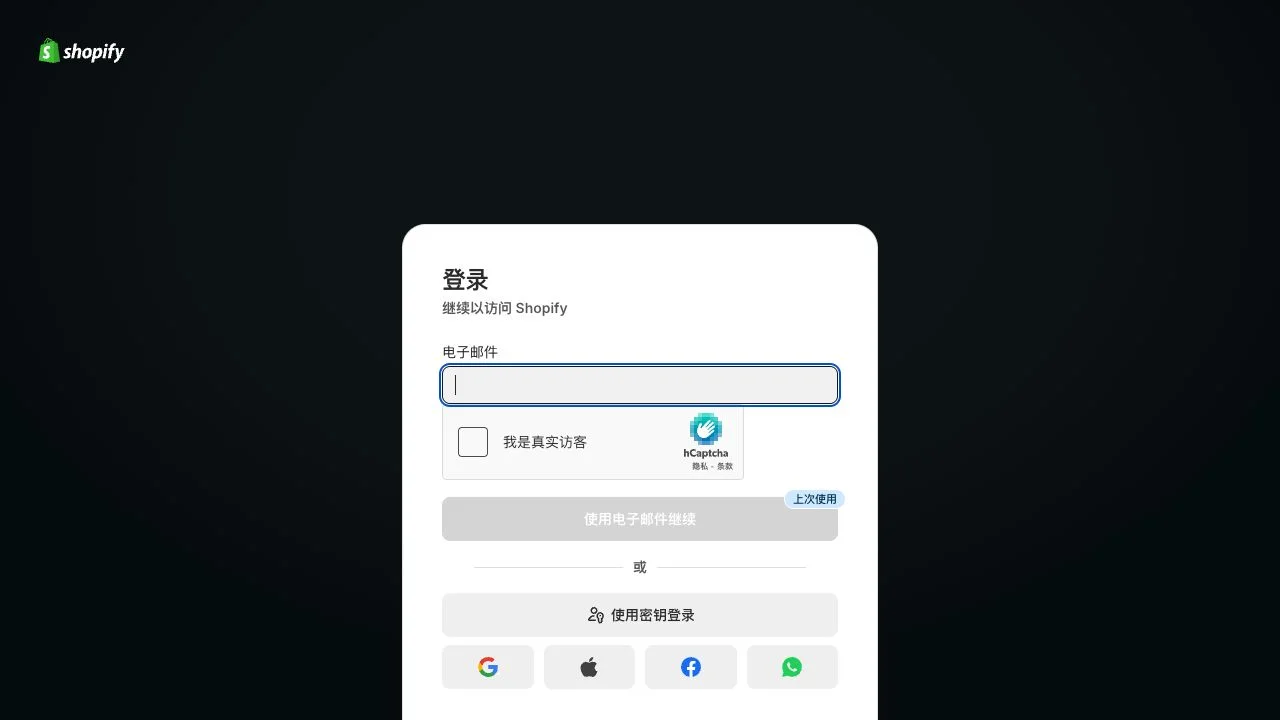
Sign in with the client owner or an authorized user manager and verify the store name and myshopify.com address. The capture shows the empty login form; no credentials or CAPTCHA were submitted.
Basic and Starter cannot add admin users; other plans have user limits. If unavailable, use the collaborator path below after agreeing the required access.
Open Settings → Users → Add users. Select Admin user, enter [email protected] in Emails and click Add. Keep secure sign-in requirements enabled.
| Field | Value |
|---|---|
| Emails | [email protected] |
| User type | Admin user |
| Next | Assign a role and review permissions |
Use Assign under Roles / Roles and groups. For a non-Plus single-store organization, select Administrator. In Plus or multi-store organizations, Organization administrator covers the whole organization; agree the scope first. Store user administrator manages users, not products or orders.
Review Permission summary, recipient and scope, then Save. The recipient accepts the email invitation and checks store access. Pending means setup is incomplete. Invitations expire after 7 days; follow the official reinvitation procedure if expired.
Ask RIFY to request collaborator access. Find the request code under Settings → Users → Security and privately share it with the store address. Review the requesting partner, role and permissions under Users → Requests before approving.
Collaborators do not count toward user limits but cannot receive Administrator or organization roles. Broad collaborator access is not the same as an administrator role. Agree a suitable regular-user route when administrative powers are required.
Record the recipient, store and role. Keep client ownership; inviting an administrator does not require transferring the store. Review or remove access through Users when appropriate.
FAQ and official references
Does Admin user automatically mean Administrator?
No. Admin user is a user type; the assigned role controls permissions.
Should I share the owner password?
Use user invitations or collaborator requests with individual logins.
Next, let’s work together.
Share this guide with a colleague or contact your RIFY project lead.
Contact RIFY ↗Read next: How to create a Gmail account →Read next: What to prepare before your project starts →Read next: How to sign up for Cloudflare with email →Read next: How to buy a domain on Cloudflare →Read next: How to register a Shopify store →Read next: How to set up Google Search Console for your website →Read next: How to set up Google Analytics 4 (GA4) →Read next: How to grant RIFY GA4 administrator access →Read next: How to grant RIFY Search Console access →